This is an old revision of the document!
OTP
Background
- A One Time Password or OTP is a common method used for user verification.
- A user will typically provide a mobile number or email address.
- The system will then send a code to the mobile number using SMS or to the email address using an email.
- This code will be used by the user to validate itself to the system.
- As for February 2023 RADIUSdesk includes support for OTP verification for Captive Portal (Hotspot) users.
- We support the following ways to send the OTP:
- SMS
- Email
- We support OTP with:
- Permanent User Registration
- Click-To-Connet
- The rest of this page will discuss the configuration and technical detail of the OTP functionality.
Enable System To Send OTPs
- In order for RADIUSdesk to send an OTP you have to configure the system to be able to send the OTP using email or SMS.
- RADIUSdesk allows for you to configure a system wide configuration but it also allows you to define per cloud settings which will take preference over the system wide settings.
- See the following screenshot for the email configuration:

- We support Sendgrid and normal SMTP as a transport for the email.
- After you specified the config press Save.
- After you saved the configuration you can test it by clicking the Test Email Settings button.
- You can also view the history of all the emails that the system sent out using this particular configuration by clicking the Show Sent History button.
- See the following screenshot for the SMS configuration.
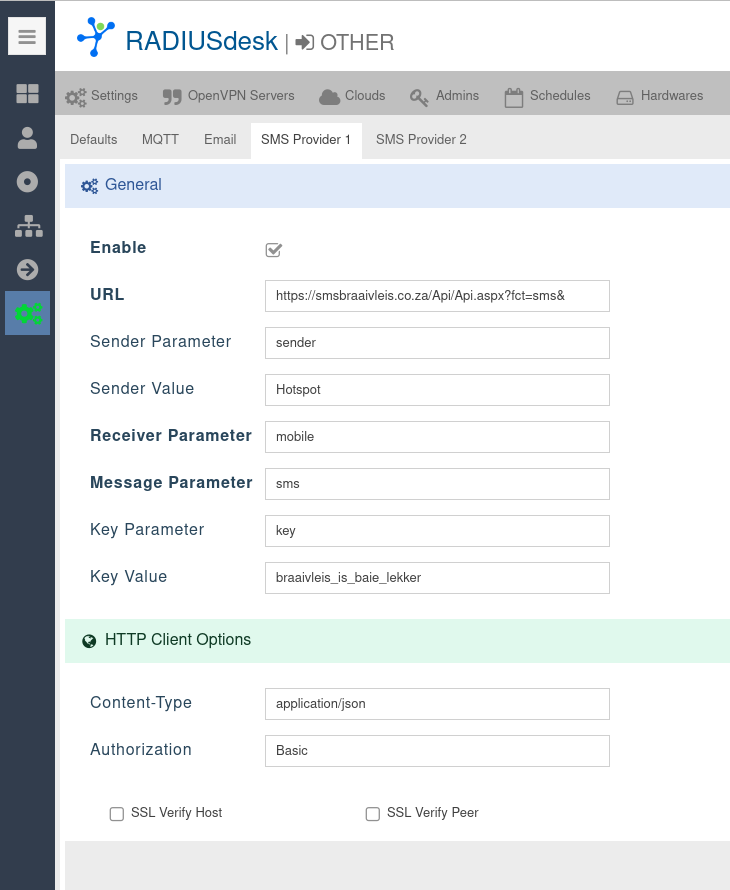
- Most SMS providers has an API that you use to send SMSs.
- RADIUSdesk allows you to specify two SMS Providers. Both can be active however the system will only use the first active one it finds.
- As with the email settings you are also able to test the SMS Settings after configuration.
- You can also view the history of all the SMSs that the system sent out using that particular configuration by clicking the Show Sent History button.
- These settings can also be specified per Cloud.
- Go to Other → Clouds.
- Simply select the cloud for which you want to add more specific settings and edit it.
- These settings will take preference.
OTP For User Registration
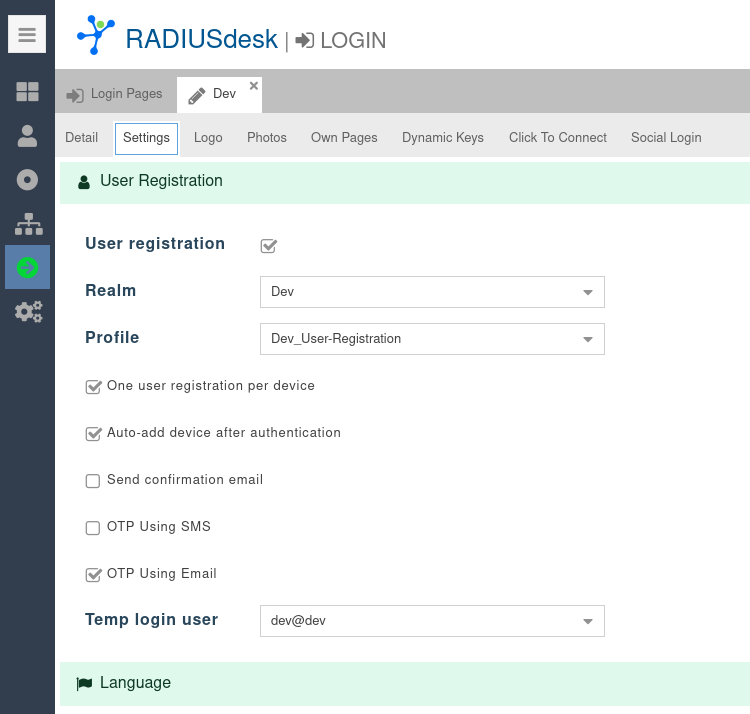
- The above screenshot should be mostly self explanatory.
- There is however one important point that should be mentioned on using Email for OTP.
- We sit with a bit of a chicken and egg situation since the person will need Internet access to get to their email to retrieve the OTP.
- We will thus provide them temporary Internet access for this action.
- This is what the Temp login user is for.
- You are advised to create a dedicated user with a special profile for this purpose.
- The profile should be
- Time limited. e.g. Session-Timeout should be 360 seconds (5minutes)
- The bandwidth should be limited.
- This will allow for the user that registers to retrieve the OTP from their email but not much beyond that in terms of Internet connection.
- The email with the OTP will also contain a link which the user can click to confirm the OTP to the system.
- This makes is easy if the WebView with the Captive Portal Login Page closed while the user retrieved the OTP from their email.
OTP For Click To Connect

- With OTP for Click To Connect there are one of two options.
- If you select the email option for the OTP, again you have to provide temporary Internet access to the user as with User Registration above.
- If you select SMS option (the user's mobile number) you don't need to provide anything since the OTP will be delivered as an SMS.
- We also again added a link in the email for the user to conveniently confirm the OTP by clicking on the link.
Some Technical Items
Expiry of the OTP
- The current expiry time for an OTP is two minutes.
- This can be adjusted by editing /var/www/html/cake4/rd_cake/src/Controller/RegisterUsersController.php and /var/www/html/cake4/rd_cake/src/Controller/DataCollectortsController.php files.
- Look for this line and adjust acordingly.
protected $valid_minutes = 2; //The time that an OTP will be valid (in minutes)
- For the verification through the Email link we expire the OTP after $valid_minutes times two. (4minutes)
Disconnecting Temp Connection
- The URL link in the email will cause a redirect to a special CoovaChilli URL that will log the user out (http://1.0.0.0).
- For this to happen the user should be connected to the Captive Portal so that this URL can log them out.
if($otp == $q_r->value){
    $success = true;
    $this->{'PermanentUserOtps'}->patchEntity($q_r, ['status' => 'otp_confirmed']);
    $this->{'PermanentUserOtps'}->save($q_r);
    $user_id = $q_r->permanent_user_id;
    $q_pu = $this->{'PermanentUsers'}->find()->where(['PermanentUsers.id' =>$user_id])->first();
        if($q_pu){
		$this->{'PermanentUsers'}->patchEntity($q_pu, ['active' => 1]);
		$this->{'PermanentUsers'}->save($q_pu);
	}
	$this->response = $this->response->withHeader('Location', "http://1.0.0.0");
        return $this->response;

}else{
We are still looking for a similar way to disconnect users on a Mikrotik based Hotspot.